
Your Android device is more than just a phone; it’s an extension of your personality. One of the easiest ways to make your device truly yours is by customizing it. Knowing how to personalize your Android home screen can transform your daily experience, making your device both functional and visually appealing. In this guide, we’ll explore step-by-step methods, tips, and tools to help you create a home screen that’s uniquely yours in 2026.
Why Personalizing Your Android Home Screen Matters
Before we dive into the “how,” let’s understand the “why.” Customizing your home screen is not just about aesthetics; it’s about improving efficiency and usability. A well-organized home screen can:
- Reduce the time spent searching for apps
- Highlight your most-used features
- Reflect your style and personality
- Enhance your productivity with widgets and shortcuts
In short, knowing how to personalize your Android home screen is essential for both style and functionality.
1. Choosing the Right Launcher
The first step to personalizing your Android home screen is selecting a launcher. A launcher is the interface that controls your home screen, app drawer, and app icons. Some of the most popular launchers in 2026 include:
- Nova Launcher – Offers unparalleled customization options
- Microsoft Launcher – Integrates well with Windows and Office apps
- Lawnchair 2 – Open-source and lightweight
- Smart Launcher 6 – Focuses on simplicity and efficiency
Using a custom launcher allows you to change app layouts, icon packs, gestures, and more. Once you have your launcher installed, you’re ready to dive deeper into customization.
2. Selecting the Perfect Wallpaper
Your wallpaper sets the tone for your entire home screen. Whether you prefer minimalist designs, live wallpapers, or personal photos, the right wallpaper can make your Android device feel more personal.
Tips for choosing wallpapers:
- Use high-resolution images for clarity
- Match the wallpaper to your theme or mood
- Consider dark wallpapers to save battery on AMOLED screens
- Rotate wallpapers periodically to keep your home screen fresh
Apps like Walli, Zedge, and Backdrops are excellent sources for trending wallpapers in 2026.
3. Organizing Apps for Maximum Efficiency
A cluttered home screen can be frustrating. To personalize your Android home screen effectively, focus on organization.
- Folders: Group apps into folders like Social, Productivity, or Entertainment
- Dock: Place your most-used apps in the dock for quick access
- Hidden Apps: Keep rarely used apps off your main home screen to reduce clutter
Remember, the goal is to make your home screen visually clean while keeping your most-used apps accessible.
4. Customizing App Icons
Changing app icons is one of the most impactful ways to personalize your Android home screen. Custom icons can match your wallpaper, your favorite colors, or even a unique design style.
How to customize icons:
- Install an icon pack from the Google Play Store
- Use your launcher to apply the icons to your apps
- Mix and match for a truly unique look
Popular icon packs in 2026 include Whicons, Pixel Pie, and CandyCons, which offer thousands of stylish icons to fit any theme.
5. Adding Widgets for Functionality
Widgets are essential for both aesthetics and productivity. They allow you to see information at a glance without opening an app.
Useful widgets for your Android home screen:
- Weather: Check the weather instantly
- Calendar: View upcoming events
- Music Player: Control your tunes directly
- Fitness Trackers: Monitor steps and activity
- Smart Home Controls: Access your IoT devices quickly
Widgets also come in various styles, so you can match them with your wallpaper and icon packs for a cohesive look.
6. Gestures and Shortcuts
Many Android launchers allow you to set up gestures and shortcuts to speed up daily tasks. For example:
- Swipe down to open notifications
- Double-tap to lock the screen
- Pinch to open the app drawer
Using gestures not only makes your device more efficient but also adds a layer of personalization that standard setups can’t match.
7. Using Themes for a Unified Look
Android themes can change your phone’s colors, icons, and overall aesthetic. Many launchers and phone brands offer built-in themes.
Tips for selecting themes:
- Pick themes that match your wallpaper and icon style
- Use dark mode themes for AMOLED devices to save battery
- Explore seasonal or event-based themes for variety
Themes give your Android device a polished, cohesive look, making it feel truly personal.
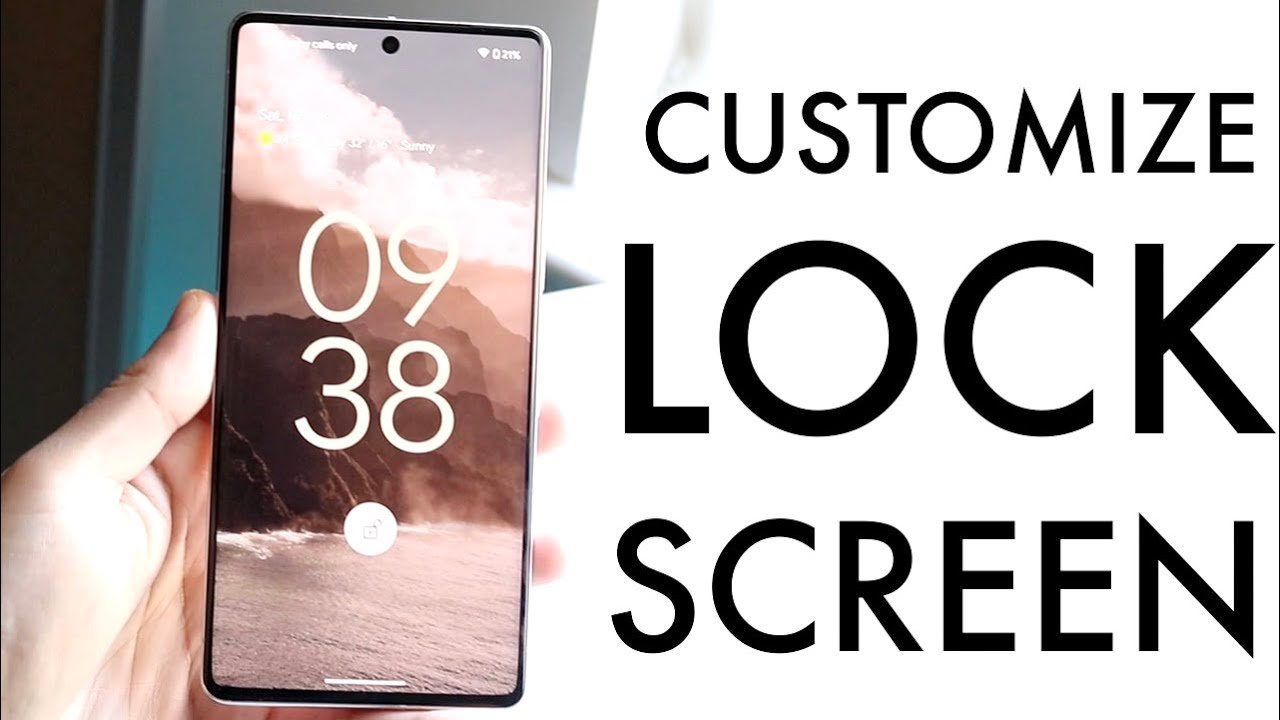
8. Personalizing the Lock Screen
While the home screen is the focus, your lock screen is also a canvas for personalization. Some ways to customize your lock screen include:
- Adding a favorite wallpaper or slideshow
- Displaying widgets like calendar events or fitness stats
- Setting up shortcuts for camera or messaging apps
A personalized lock screen ensures your Android experience starts the moment you pick up your phone.
9. Organizing Multiple Home Screens
Many users don’t know that they can have multiple home screens, each serving a different purpose. For example:
- Main screen for frequently used apps
- Social media screen for all social apps
- Work screen for productivity apps and widgets
This segmentation allows for better organization and makes it easier to find what you need.
10. Exploring Third-Party Customization Apps
Apart from launchers and themes, there are many third-party apps that let you personalize your Android home screen in creative ways. Some popular apps include:
- KWGT – Create custom widgets
- Tasker – Automate tasks and personalize functions
- Muzei – Dynamic wallpaper rotation
- Icon Changer – Create unique app icons
These tools provide endless possibilities for creating a home screen that reflects your personality and lifestyle.
11. Tips for a Minimalist Android Home Screen
Minimalism is trending in 2026. A clean, simple home screen can make your device easier to use while still looking stylish.
Minimalist tips:
- Keep only essential apps on the main screen
- Use subtle wallpapers with muted colors
- Limit widget use to the most functional ones
- Maintain consistent icon shapes and colors
Minimalist setups are not just visually appealing but also reduce distractions.
12. How to Backup Your Home Screen Setup
After spending time personalizing your Android home screen, it’s important to back up your setup. Most launchers offer backup options, allowing you to save your layout, widgets, and themes.
- Nova Launcher: Offers a built-in backup feature
- Microsoft Launcher: Syncs with your Microsoft account
- Third-party apps: Can also save wallpapers, icon packs, and widgets
Backing up ensures you can restore your personalized setup if you switch devices or reset your phone.
13. Keeping Your Home Screen Updated
Personalization doesn’t stop after the first setup. You can update your home screen regularly to reflect your mood, season, or latest trends.
- Rotate wallpapers weekly
- Try new icon packs monthly
- Update widgets based on usage and relevance
- Experiment with themes for holidays or special events
Regular updates keep your Android home screen fresh and engaging.
14. Common Mistakes to Avoid
Even experienced Android users make mistakes when personalizing their home screens. Avoid these pitfalls:
- Overloading your home screen with too many apps and widgets
- Using low-quality wallpapers that look blurry
- Ignoring battery consumption caused by live wallpapers or heavy widgets
- Failing to back up your layout
Avoiding these mistakes will ensure your home screen is both beautiful and functional.
15. Final Thoughts: Your Personalized Android Experience
Learning how to personalize your Android home screen allows you to turn your device into a true reflection of your style and habits. From choosing the right launcher to organizing apps, customizing icons, adding widgets, and using gestures, every element contributes to a more enjoyable user experience.
By following the steps outlined in this guide, you can create a home screen that is visually stunning, highly functional, and uniquely yours. Remember, personalization is a journey — experiment with different layouts, colors, and tools until you find the perfect combination.
Start today, and transform your Android device into a home screen that is both personal and practical. Your device deserves it, and so do you.