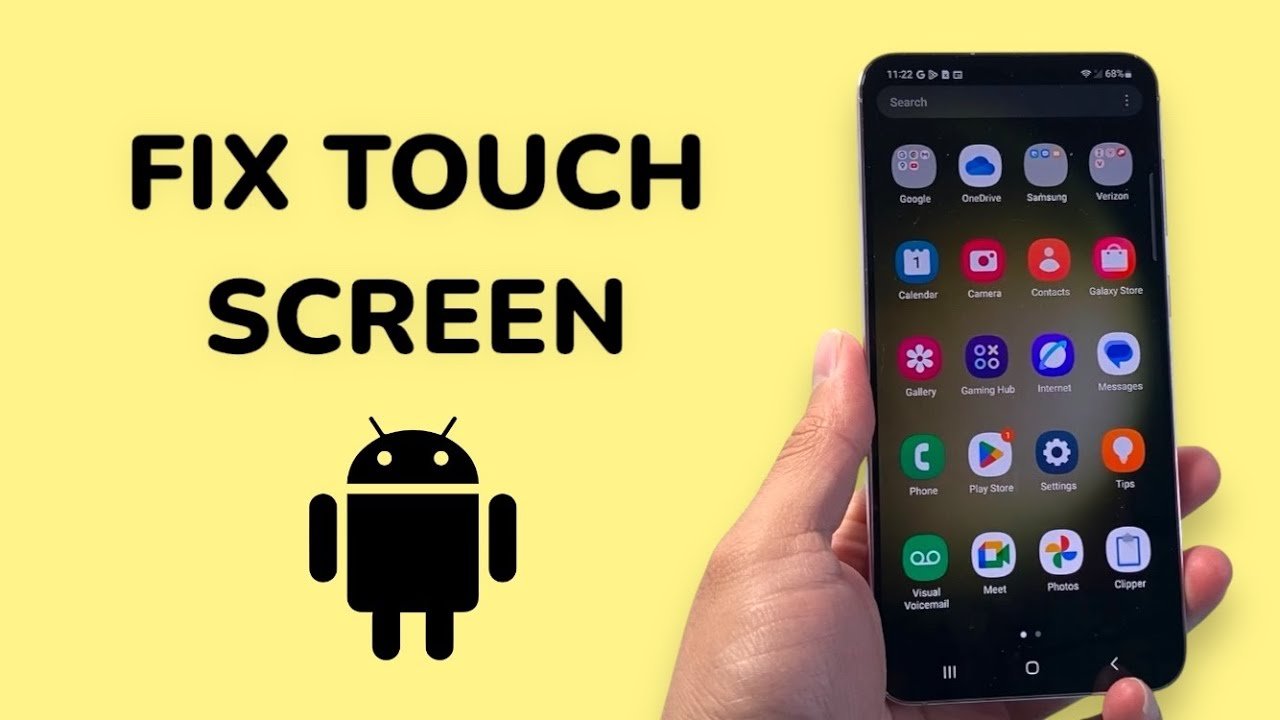

Is your phone’s display not responding to taps or swipes? Don’t panic. If you’re searching for How to Fix Touch Screen Not Working, you’re in the right place.
A non-responsive touch screen can be frustrating, especially when you rely on your phone daily for calls, social media, work, and entertainment. The good news is that most touch screen problems are fixable without visiting a repair shop.
In this complete guide, we’ll explain why touch screens stop working and provide practical, easy-to-follow solutions to fix the issue at home.
Why Is My Touch Screen Not Working?
Before learning how to fix touch screen not working, it’s important to understand the possible causes. The problem may be due to:
- Software glitches
- Outdated system updates
- Physical damage
- Water or moisture exposure
- Screen protector interference
- Low storage or RAM issues
- Faulty apps
- Overheating
Let’s now move step-by-step through proven fixes.
1. Restart Your Phone (The Easiest Fix)
Sometimes the issue is temporary.
A simple restart can:
- Clear background glitches
- Refresh system memory
- Stop frozen apps
How to Restart:
- Press and hold the Power button.
- Tap Restart.
- Wait for the device to reboot.
If your screen is completely frozen:
- Hold Power + Volume Down for 10–15 seconds (Force Restart).
Many users fix the issue instantly with this step.
2. Remove Screen Protector or Case
One of the most common reasons people search how to fix touch screen not working is because of a faulty screen protector.
Thick tempered glass or damaged protectors can block touch sensitivity.
What to Do:
- Remove the screen protector.
- Clean the screen.
- Test touch response.
Also remove bulky cases that may press against the edges of the display.
3. Clean the Screen Properly
Dust, oil, or moisture can interfere with capacitive touch sensors.
Cleaning Method:
- Turn off the phone.
- Use a microfiber cloth.
- Slightly dampen with water (no chemicals).
- Gently wipe the screen.
Avoid alcohol-based cleaners unless manufacturer-approved.
4. Check for Water Damage
If your phone was exposed to water, the screen may malfunction.
Signs of Water Damage:
- Random touches (ghost touch)
- Flickering display
- Unresponsive areas
Fix:
- Turn off the phone immediately.
- Remove SIM card.
- Let it dry for 24–48 hours.
- Do NOT use a hair dryer.
If the issue continues, hardware repair may be needed.
5. Update Your Android Software
Software bugs often cause screen issues. Keeping your phone updated can solve the problem.
Steps:
- Go to Settings
- Tap Software Update
- Install available updates
Updates fix bugs and improve touch performance.
6. Boot into Safe Mode
Sometimes third-party apps cause touch problems.
Booting into Safe Mode disables all external apps.
How:
- Hold Power button.
- Tap and hold Power Off.
- Select Safe Mode.
If the touch works in Safe Mode, uninstall recently installed apps.
7. Free Up Storage Space
Low storage can cause lag and touch delay.
Fix:
- Delete unused apps
- Clear cache
- Remove large files
- Transfer photos to cloud
Keep at least 20% storage free for smooth performance.
8. Calibrate the Touch Screen
Touch calibration helps fix unresponsive areas.
Some Android phones allow calibration through settings.
You can also use trusted calibration apps from the Play Store.
Calibration improves sensitivity and fixes dead zones.
9. Check for Overheating
Overheating can temporarily disable touch response.
Solutions:
- Remove phone case
- Avoid direct sunlight
- Close heavy apps
- Let phone cool down
If overheating is frequent, check battery health.
10. Perform Factory Reset (Last Software Option)
If none of the above fixes work, try a factory reset.
⚠️ Important: Backup your data first.
Steps:
- Go to Settings
- Tap System
- Select Reset Options
- Choose Erase All Data
This removes software bugs causing touch problems.
11. Check for Physical Damage
If you dropped your phone, the digitizer (touch layer) may be damaged.
Signs:
- Cracked screen
- Half screen not working
- Lines or black spots
In this case, screen replacement is required.
Visit an authorized service center for safe repair.
How to Fix Touch Screen Not Working on Specific Brands
Different Android brands may have slightly different steps.
How to Fix Touch Screen Not Working on Samsung
- Force restart (Power + Volume Down)
- Run Device Care
- Update software
- Check Touch Sensitivity in Settings
How to Fix Touch Screen Not Working on Xiaomi
- Clear system cache
- Disable Full Screen Gestures
- Update MIUI
- Factory reset if needed
How to Fix Touch Screen Not Working on Oppo / Vivo
- Remove smart gestures
- Disable screen recording apps
- Update system firmware
Most Android fixes follow the same troubleshooting steps mentioned earlier.
When Should You Visit a Technician?
If:
- Screen is cracked
- Phone fell in water
- Touch doesn’t work even after reset
- Display flickers constantly
Then hardware repair is required.
Replacing only the glass is cheaper than replacing the full display panel (depending on damage).
How to Prevent Touch Screen Problems
Now that you know how to fix touch screen not working, here are tips to prevent future issues:
✔ Use a high-quality screen protector
✔ Avoid overcharging
✔ Keep phone away from water
✔ Don’t install unknown apps
✔ Update software regularly
✔ Clean screen weekly
✔ Avoid cheap chargers
Prevention saves money and stress.
Frequently Asked Questions (FAQs)
Why is my touch screen not responding but phone is on?
It could be a software glitch, low storage, or damaged digitizer.
Can a virus cause touch screen problems?
Rarely, but malware can slow down the system. Scan your device.
How much does screen replacement cost?
Cost depends on brand and model. OLED displays are more expensive than LCD.
Can I fix touch screen not working at home?
Yes. Most issues are software-related and fixable without professional help.
Final Thoughts
If you were searching for How to Fix Touch Screen Not Working, now you have a complete solution guide.
In most cases, the issue is caused by:
- Software glitches
- Screen protector problems
- Storage overload
- Minor system bugs
Try simple fixes first like restarting, cleaning, and updating your device. Only consider factory reset or hardware repair as a last option.
A responsive touch screen is essential for smooth smartphone use. By following this guide carefully, you can fix the issue quickly and avoid unnecessary repair costs.