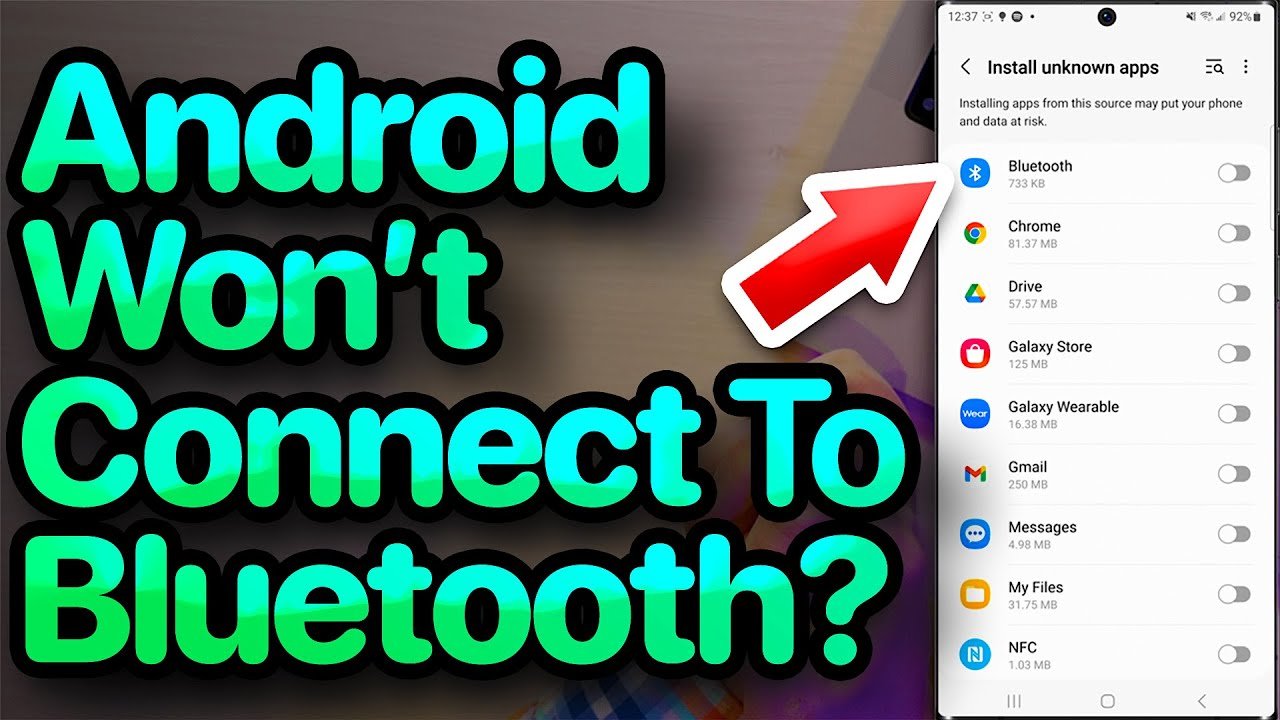

Bluetooth is one of the most useful features on modern smartphones. Whether you’re connecting wireless earbuds, speakers, smartwatches, car systems, or file-sharing devices, Bluetooth makes everything easier. But sometimes, it simply refuses to connect — and that can be frustrating.
If you’re struggling with this issue, don’t worry. In this complete guide, you’ll learn How to Fix Bluetooth Not Connecting problems on Android devices using simple, practical solutions that actually work.
Let’s get started.
Why Bluetooth Is Not Connecting on Your Phone
Before jumping into solutions, it’s important to understand why Bluetooth fails to connect. Common reasons include:
- Temporary software glitches
- Outdated system software
- Corrupted Bluetooth cache
- Device compatibility issues
- Interference from other devices
- Previously paired device conflicts
No matter the cause, the solutions below will help you fix the issue step by step.
1. Restart Your Phone (The Simple Fix)
It may sound basic, but restarting your device solves most connectivity issues.
When your phone runs for long periods, background services may glitch — including Bluetooth.
Steps:
- Press and hold the power button.
- Tap Restart.
- After rebooting, try connecting again.
If you’re searching for How to Fix Bluetooth Not Connecting, this should always be your first step.
2. Turn Bluetooth Off and On Again
Sometimes Bluetooth just needs a refresh.
Steps:
- Go to Settings > Bluetooth
- Turn Bluetooth OFF
- Wait 10 seconds
- Turn it ON again
Now try pairing your device.
3. Forget and Re-Pair the Device
If your phone was previously connected to the device but now refuses to connect, the pairing data may be corrupted.
Steps:
- Open Settings > Bluetooth
- Tap the connected device name
- Select Forget
- Restart Bluetooth
- Pair the device again
This method works especially well with wireless earbuds and car systems.
4. Check for Android System Updates
An outdated Android version can cause Bluetooth bugs. Keeping your system updated is essential.
Steps:
- Go to Settings > System > Software Update
- Check for updates
- Install if available
Brands like Samsung, Xiaomi, and OnePlus regularly release updates that fix connectivity issues.
If you’re serious about learning How to Fix Bluetooth Not Connecting, never ignore system updates.
5. Clear Bluetooth Cache and Data
Corrupted cache files often cause pairing failures.
Steps:
- Go to Settings > Apps
- Tap the three-dot menu
- Select Show System Apps
- Find Bluetooth
- Tap Storage
- Select Clear Cache
- Then tap Clear Data
Restart your phone and test the connection again.
6. Check the Other Device
Sometimes the problem isn’t your phone.
Make sure:
- The other device is charged
- Bluetooth is enabled on it
- It’s in pairing mode
- It’s not connected to another phone
For example, if you’re connecting Bluetooth earbuds, reset them according to the manufacturer’s instructions.
7. Disable Battery Saver Mode
Battery Saver can restrict background services, including Bluetooth.
Steps:
- Go to Settings > Battery
- Turn off Battery Saver
Now try connecting again.
8. Reset Network Settings
If nothing works, resetting network settings often solves deep connectivity issues.
⚠️ Note: This will remove WiFi passwords and paired devices.
Steps:
- Go to Settings > System
- Tap Reset Options
- Select Reset WiFi, Mobile & Bluetooth
- Confirm reset
After reset, reconnect your Bluetooth device.
This is one of the most effective solutions when learning How to Fix Bluetooth Not Connecting problems permanently.
9. Check for Interference
Bluetooth works on 2.4GHz frequency, which can be affected by:
- WiFi routers
- Microwaves
- Multiple wireless devices
Try:
- Moving closer to the device
- Turning off nearby Bluetooth devices
- Disconnecting unused paired devices
10. Safe Mode Test
Sometimes third-party apps cause Bluetooth conflicts.
Boot your phone into Safe Mode to test:
Steps (General Android):
- Press and hold Power button
- Tap and hold Power Off
- Select Safe Mode
In Safe Mode:
- Try connecting Bluetooth
If it works, an installed app is the problem. Uninstall recently downloaded apps.
11. Factory Reset (Last Option)
If nothing fixes the issue, a factory reset may be required.
⚠️ Backup your data before proceeding.
Steps:
- Go to Settings > System
- Tap Reset
- Choose Factory Data Reset
Only use this method if all other fixes fail.
How to Fix Bluetooth Not Connecting in Car Systems
Car Bluetooth issues are common. Try these extra tips:
- Delete your phone from the car’s paired list
- Restart your car infotainment system
- Update car firmware (if available)
- Keep your phone’s Bluetooth visible
Many modern cars support updates via USB.
Quick Troubleshooting Checklist
If you want a fast solution summary:
✔ Restart phone
✔ Toggle Bluetooth
✔ Forget and re-pair device
✔ Clear Bluetooth cache
✔ Update Android
✔ Reset network settings
✔ Check device compatibility
Follow these in order to quickly solve the issue.
Prevent Bluetooth Problems in the Future
To avoid facing this issue again:
- Keep your Android updated
- Avoid installing unknown apps
- Clear unused paired devices
- Restart your phone once a week
- Don’t overload your Bluetooth connections
Simple maintenance prevents most connectivity issues.
Final Thoughts
Bluetooth issues can be annoying, especially when you urgently need to connect your earbuds, smartwatch, or car system. But the good news is — most problems are software-related and easy to fix.
By following this complete guide on How to Fix Bluetooth Not Connecting, you can solve the issue step by step without needing professional repair.
Start with the basic fixes, move toward advanced troubleshooting, and your Bluetooth should be working perfectly again.
If you found this guide helpful, keep visiting apkayz.com for more Android troubleshooting tips, tech guides, and smart solutions.