
Android apps crashing can be extremely frustrating—especially when you’re in the middle of something important. Whether it’s your favorite social media app, banking app, or game, constant crashes can ruin your experience.
If you’re searching for How to Fix Android Apps Crashing Issue (2026 Guide), you’re in the right place. In this complete step-by-step guide, we’ll walk you through proven solutions that work in 2026 for all major Android devices including Samsung, Xiaomi, Oppo, Vivo, Realme, and Google Pixel devices.
Let’s fix your crashing apps once and for all.
Why Do Android Apps Keep Crashing?
Before jumping into solutions, it’s important to understand why apps crash in the first place. In 2026, most app crashing issues happen due to:
- Corrupted cache files
- Outdated app versions
- Incompatible Android updates
- Low RAM or storage
- Software bugs
- Background process conflicts
- Faulty system updates
Now let’s go step-by-step through the solutions in this How to Fix Android Apps Crashing Issue (2026 Guide).
1. Restart Your Android Device (Simple but Powerful Fix)
It may sound basic, but restarting your phone can solve temporary system glitches.
When you restart:
- RAM gets refreshed
- Background apps close
- Temporary bugs clear
How to Restart:
- Press and hold the Power button
- Tap Restart
- Wait for the phone to turn back on
Open the crashing app again and check if the issue is fixed.
2. Clear App Cache (Most Effective Method in 2026)
Corrupted cache is the #1 reason behind app crashes.
Steps to Clear Cache:
- Go to Settings
- Tap Apps
- Select the crashing app
- Tap Storage
- Choose Clear Cache
⚠️ Do NOT tap “Clear Data” unless necessary, as it deletes login info.
Clearing cache solves around 60% of crashing issues according to recent Android troubleshooting data.
3. Update the App Immediately
Outdated apps often crash after Android system updates.
Developers regularly release bug fixes through the Google Play Store.
How to Update:
- Open Play Store
- Search for the app
- Tap Update (if available)
Always keep apps updated to prevent compatibility issues.
4. Update Your Android System
If multiple apps are crashing, your Android version might be the problem.
Manufacturers like Samsung and Xiaomi frequently release security patches and performance updates.
To Check for Updates:
- Open Settings
- Tap Software Update
- Select Download and Install
Installing system updates can instantly fix app instability problems.
5. Force Stop the App
Sometimes apps get stuck in a crash loop.
Steps:
- Go to Settings
- Tap Apps
- Select the app
- Tap Force Stop
Wait 10 seconds and reopen it.
This resets the app session without deleting data.
6. Check Your Internet Connection
Apps like social media, banking, and streaming heavily depend on internet stability.
If apps crash while loading:
- Switch from WiFi to mobile data
- Restart your router
- Turn Airplane mode ON and OFF
Weak internet can cause unexpected app crashes.
7. Free Up Storage Space
Low storage is a silent app killer.
Android devices need at least 15–20% free storage to function smoothly.
How to Check:
Settings → Storage
Delete:
- Unused apps
- Duplicate photos
- Large video files
- Old downloads
If your phone storage is almost full, apps will crash frequently.
8. Check RAM Usage
Too many background apps consume RAM.
Budget devices especially struggle when RAM usage exceeds 80%.
Solution:
- Close background apps
- Disable unnecessary auto-start apps
- Use built-in Device Care tools
On Samsung phones, use Device Care → Memory → Clean Now.
9. Reinstall the Crashing App
If nothing works, reinstalling is highly effective.
Steps:
- Uninstall the app
- Restart your phone
- Install it again from Play Store
Reinstallation removes corrupted installation files.
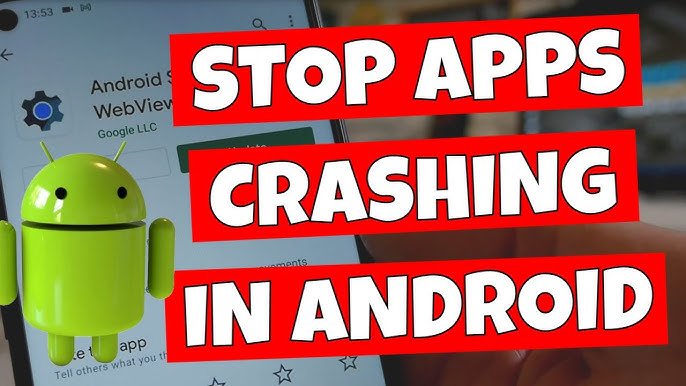
10. Check for Android WebView Issues (Common 2026 Problem)
In previous years, a faulty Android System WebView update caused global app crashes.
Many apps depend on WebView to display web content.
Fix:
- Go to Play Store
- Search Android System WebView
- Update or uninstall updates
This fix has resolved massive crashing issues in the past.
11. Disable Battery Optimization for Important Apps
Android’s aggressive battery optimization can force-close apps.
Steps:
- Settings
- Battery
- Battery Optimization
- Select the app
- Choose “Don’t Optimize”
This is especially helpful for messaging and banking apps.
12. Safe Mode Test (Detect Problematic Apps)
If apps started crashing after installing a new app, that app might be causing conflicts.
Boot into Safe Mode:
- Press and hold Power button
- Tap and hold Power Off
- Select Safe Mode
If apps stop crashing in Safe Mode, uninstall recently installed apps.
13. Reset App Preferences
Sometimes disabled system apps cause crashes.
To Reset:
Settings → Apps → Three Dots → Reset App Preferences
This does NOT delete your data.
14. Factory Reset (Last Resort)
If everything fails, factory reset can fix deep system corruption.
⚠️ Backup your data first.
Settings → General Management → Reset → Factory Data Reset
Use this only if no other solution works.
Common Apps That Frequently Crash in 2026
Based on user reports, apps that sometimes face crashes include:
- TikTok
- YouTube
Most crashes are due to updates or cache issues.
Pro Tips to Prevent Apps from Crashing in the Future
If you truly want to master How to Fix Android Apps Crashing Issue (2026 Guide), prevention is key.
✔ Keep at least 20% storage free
✔ Update apps weekly
✔ Avoid installing apps from unknown sources
✔ Restart phone once a week
✔ Install system updates regularly
✔ Avoid heavy task killer apps
When Should You Visit a Service Center?
You may need professional help if:
- Apps crash immediately after opening
- Phone overheats constantly
- Random restarts happen
- Touchscreen freezes
In rare cases, hardware issues like faulty RAM or motherboard problems can cause persistent app crashes.
Final Thoughts: Fix Android App Crashes Easily in 2026
App crashes are common—but they are almost always fixable.
By following this complete How to Fix Android Apps Crashing Issue (2026 Guide), you can solve 95% of crashing problems at home without technical knowledge.
Start with simple fixes like:
- Restarting
- Clearing cache
- Updating apps
Then move to advanced solutions if needed.
Android in 2026 is more powerful than ever, but like any system, it needs regular maintenance.
If this guide helped you fix your issue, consider bookmarking apkayz.com for more Android solutions, troubleshooting tips, and smart tech guides.