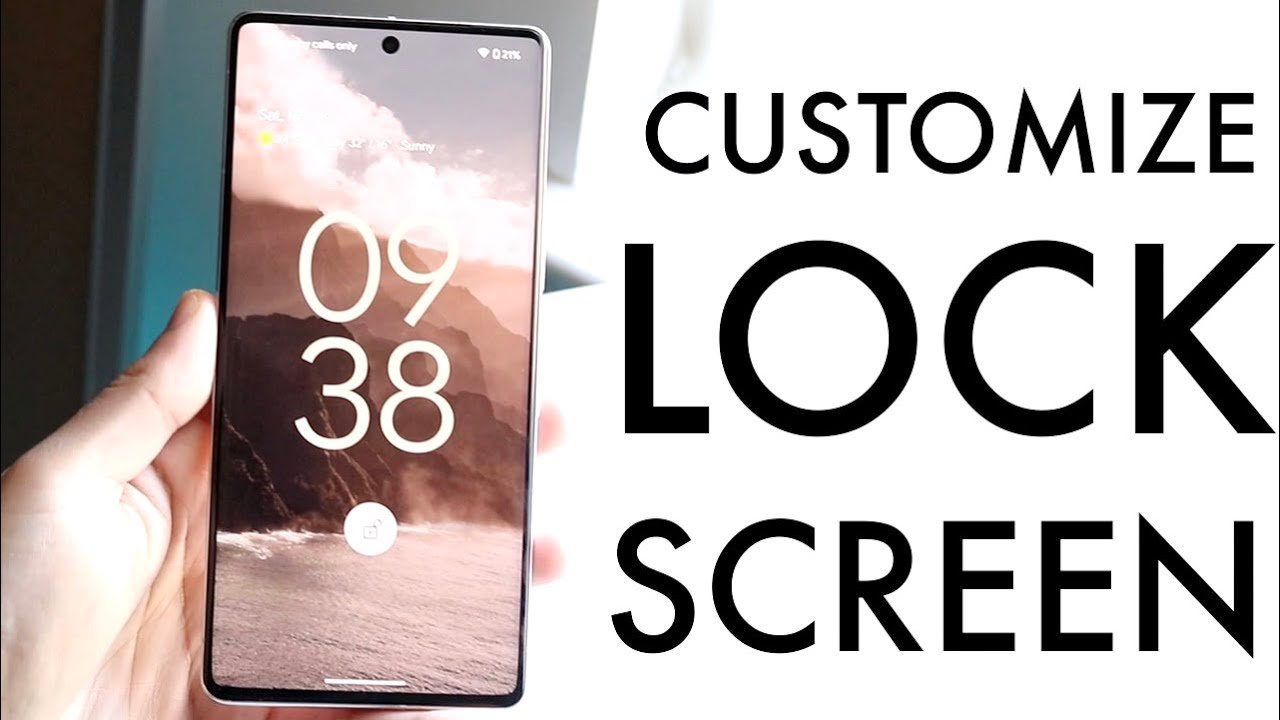

Widgets are one of the most powerful features of Android devices. They allow you to access essential information and tools directly from your home screen, without opening individual apps. If you’re wondering how to customize widgets on Android, this guide will walk you through everything you need to know — from adding widgets to personalizing them to suit your style.
What Are Widgets on Android?
Widgets are small app components that display information or provide quick access to functions. Unlike app icons, which open the full app, widgets give you a glanceable view of information such as weather, calendar events, music controls, and news updates.
Customizing widgets on Android not only makes your device more functional but also enhances its visual appeal. With the right customization, your home screen can become a reflection of your personality while being highly practical.
Why Customize Widgets on Android?
Customizing widgets is more than just aesthetics. Here’s why you should consider it:
- Quick Access: Tailor widgets to show the information you need most.
- Productivity Boost: Keep your tasks, calendar events, and reminders right on the home screen.
- Personalization: Match your widgets with your wallpaper, color theme, or style preferences.
- Efficient Space Usage: Resize widgets to fit your home screen layout perfectly.
By learning how to customize widgets on Android, you can turn your device into a powerful, organized workspace.
How to Add Widgets on Android
Before customizing, you need to add widgets to your home screen. Follow these steps:
- Long-press on an empty space on your home screen.
- Select Widgets from the menu that appears.
- Browse the available widgets from installed apps.
- Long-press the widget you want and drag it to the desired location.
- Release the widget, and it will be placed on your home screen.
Once the widget is added, you can start customizing it to make it functional and visually appealing.
Steps to Customize Widgets on Android
Customizing widgets on Android can vary slightly depending on your device and Android version, but the general steps are as follows:
1. Resize Widgets
Most Android widgets are resizable. To resize a widget:
- Long-press the widget until you see a border with dots or lines.
- Drag the edges to increase or decrease the size.
Resizing helps you fit widgets neatly on your home screen while ensuring they remain readable and accessible.
2. Change Widget Settings
Many widgets come with customization options:
- Tap on the widget to open its settings or configuration menu.
- Adjust parameters like theme, transparency, color, font size, or displayed content.
For example, a weather widget might allow you to switch between Celsius and Fahrenheit or display forecasts for multiple locations.
3. Use Widget Stacks
Some Android launchers allow stacking widgets on top of each other.
- This is particularly useful for widgets like calendars or notes, where multiple widgets can occupy the same space.
- Swipe through the stack to view different widgets without cluttering your home screen.
4. Apply Third-Party Customization Apps
For more advanced personalization, consider apps like KWGT, Zooper Widget, or Widgetsmith. These apps allow you to:
- Create fully custom widgets from scratch.
- Use templates for clocks, weather, battery indicators, or task lists.
- Apply unique designs that aren’t available in default Android widgets.
5. Organize Widgets Strategically
Think about how you use your device daily:
- Place your most-used widgets at the top for quick access.
- Group similar widgets together to make your home screen clean and functional.
- Use widgets alongside folders and shortcuts to reduce clutter.
Tips for Stunning Widget Customization
To make the most of your Android widgets, consider these tips:
- Match Colors with Wallpaper: Pick widget colors that complement your wallpaper for a cohesive look.
- Use Transparent Widgets: Some widgets allow transparency, letting your wallpaper shine through.
- Limit the Number of Widgets: Too many widgets can slow down your device and make it cluttered.
- Experiment with Shapes and Sizes: Rectangular, square, or circular widgets can create an appealing layout.
By experimenting, you’ll discover a home screen that’s both functional and stylish.
Common Issues and How to Fix Them
Even when you know how to customize widgets on Android, problems can occur. Here are common issues and solutions:
- Widgets Not Updating:
- Go to Settings > Apps > [App Name] > Battery and ensure background activity is allowed.
- Widgets Missing After Restart:
- Remove and re-add the widget. Some widgets need manual refresh after a system reboot.
- Widgets Not Resizable:
- Check if your Android version supports resizing. If not, use a third-party launcher like Nova Launcher.
- Laggy Home Screen:
- Reduce the number of widgets or animations. Widgets that pull data from the internet can slow performance.
Conclusion
Learning how to customize widgets on Android empowers you to make your device more productive, organized, and visually pleasing. From resizing and configuring to using advanced third-party tools, there are endless possibilities to personalize your home screen.
Start experimenting today — your Android device can be much more than a phone; it can be a reflection of your lifestyle and productivity.