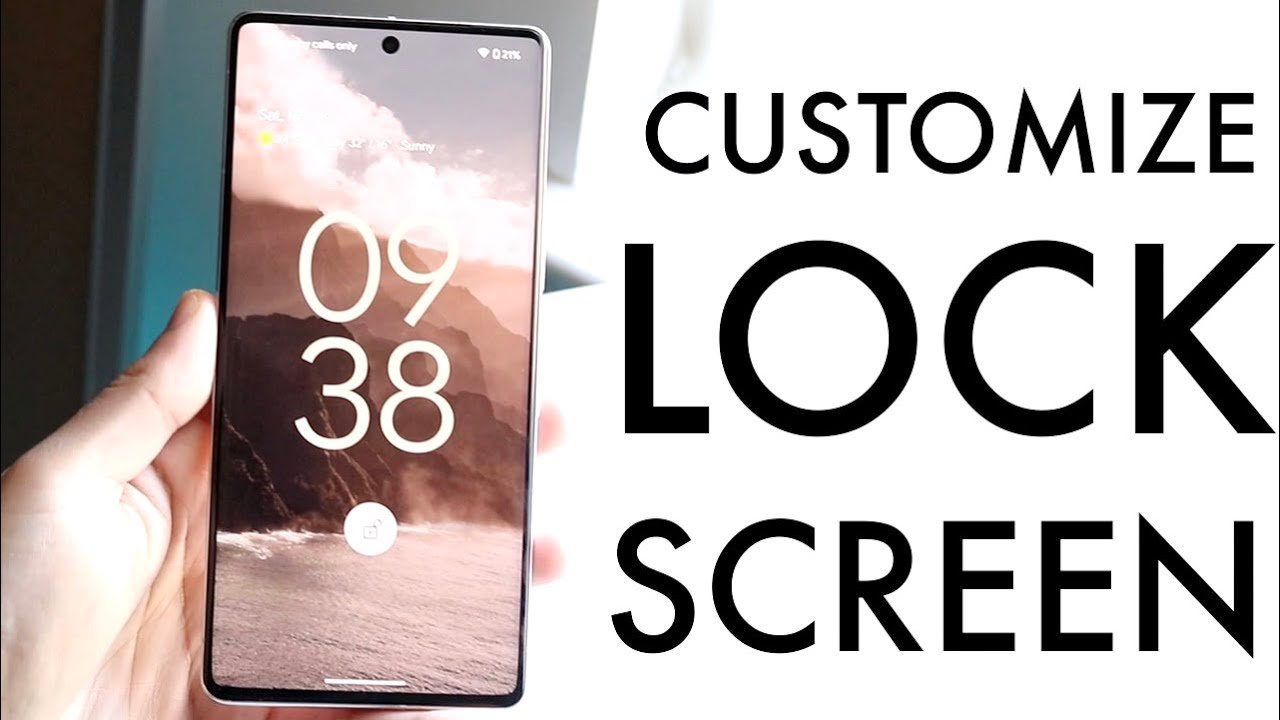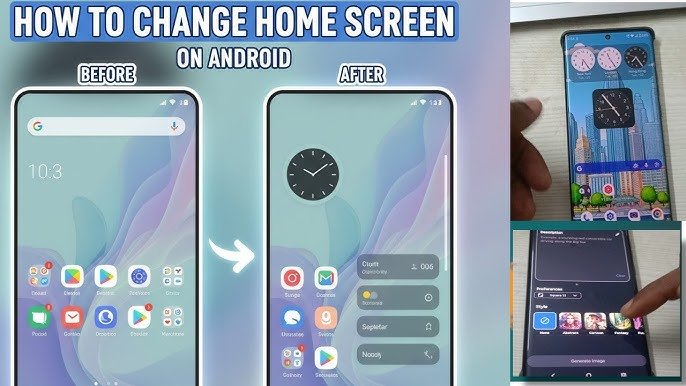

In today’s world, personalization has become a key part of the smartphone experience. Whether you’re someone who loves bright, colorful designs or prefers a sleek, minimalistic look, customizing your Android device can make it truly yours. Changing Android themes is one of the easiest and most impactful ways to refresh your phone’s interface. In this article, we will guide you step by step on how to change Android themes easily, including tips, tricks, and some of the best apps to use in 2026.
Why Changing Android Themes is Important
Your Android phone is not just a device; it reflects your personality. Here’s why changing themes can be beneficial:
- Personalization: Tailor your phone to match your style and mood.
- Improved Usability: Certain themes enhance readability and app navigation.
- Battery Life Boost: Dark themes can save battery on OLED screens.
- Fresh Look: Prevent boredom with a new look every few weeks.
Now that we understand the benefits, let’s explore how to change Android themes easily.
Step 1: Check Your Android Version
Before changing themes, it’s important to know which Android version your phone is running. Different Android versions offer varying theme options:
- Android 13 and above: Supports dynamic themes and system-wide dark mode.
- Older versions (Android 10–12): Limited theme options, often requiring third-party apps.
To check your Android version:
- Go to Settings > About Phone.
- Look for Android Version.
- Update if needed for full theme compatibility.
Step 2: Use Built-in Theme Options
Most Android phones now come with built-in theme options. Here’s how to access them:
- Open Settings: Tap the gear icon.
- Display Settings: Look for Themes, Wallpaper & Style, or Display.
- Choose a Theme: Select from pre-installed options or download additional themes from the store.
Example:
- Samsung Galaxy: Use Samsung Themes to change wallpapers, icons, and system colors.
- Xiaomi (MIUI): Go to Themes App for an extensive library.
- OnePlus (OxygenOS): Navigate to Settings > Customization > Theme.
Using built-in options is the safest way to change themes without risking phone performance.
Step 3: Try Third-Party Launchers
If you want more customization, third-party launchers can transform your Android experience. Launchers allow you to change icons, widgets, animations, and overall style.
Popular Launchers for 2026:
- Nova Launcher: Highly customizable and lightweight.
- Microsoft Launcher: Offers productivity features along with themes.
- Smart Launcher 6: AI-powered suggestions and unique designs.
- Action Launcher: Quick theme switches and icon packs.
To change themes via a launcher:
- Install the launcher from Google Play Store.
- Set it as your default home screen.
- Browse and apply themes or icon packs.
Step 4: Download Icon Packs and Wallpapers
Even without a full theme, changing icons and wallpapers can give your Android a fresh look.
- Icon Packs: These apps replace default app icons with unique designs. Examples include Whicons, Moonshine, and CandyCons.
- Wallpapers: Use apps like Walli, Zedge, or built-in wallpaper apps to match your new theme.
By combining icons and wallpapers, you can achieve a personalized theme easily.
Step 5: Enable Dark Mode for Instant Refresh
Dark mode isn’t just trendy; it’s practical. It reduces eye strain, improves battery life, and instantly changes your phone’s look.
How to Enable:
- Settings > Display > Dark Mode.
- Some apps allow independent dark mode (e.g., YouTube, Gmail).
Dark mode works well with many Android themes, giving a clean, modern feel without additional downloads.
Step 6: Automate Theme Changes
Did you know you can automate theme changes based on time or location? Some Android phones and apps let you:
- Switch between light and dark mode automatically.
- Change wallpapers based on weather or time of day.
- Apply different themes for work and personal use.
Apps like IFTTT or Tasker can automate these changes for a fully dynamic phone experience.
Tips to Optimize Your Theme Experience
- Keep Performance in Mind: Heavy themes may slow down older devices.
- Backup Your Settings: Before making major changes, backup current layouts.
- Mix and Match: Don’t rely on one app; combine launchers, wallpapers, and icon packs for a unique look.
- Stay Updated: Theme apps and launchers often release new designs every month.
Best Theme Apps for 2026
To make changing Android themes easily even simpler, here’s a list of top apps for 2026:
| App Name | Features |
|---|---|
| Samsung Themes | Wallpapers, icons, system-wide themes |
| MIUI Themes | Free themes, wallpapers, fonts for Xiaomi phones |
| Nova Launcher | Custom icons, gestures, layouts |
| Zedge | HD wallpapers, ringtones, icon packs |
| Smart Launcher 6 | AI-based suggestions, lightweight, fast |
| KWGT | Custom widgets for personalizing home screens |
Using these apps makes the theme-changing process fast, fun, and fully customizable.
Common Mistakes to Avoid
- Installing Unverified Themes: Could harm your device or contain malware.
- Overloading Customizations: Too many widgets and icons can slow down your phone.
- Ignoring Updates: Theme apps may crash if not updated.
Always download from trusted sources like Google Play Store and avoid unknown APKs.
FAQs About Changing Android Themes
Q1: Can I revert to the default theme?
Yes. Most phones allow you to revert in Settings > Themes > Default.
Q2: Do themes affect phone performance?
Some heavy themes or live wallpapers may slow older devices. Choose lightweight options if needed.
Q3: Are paid themes worth it?
Paid themes often offer unique designs, animations, and premium icon packs. If you want exclusive customization, it’s worth the investment.
Q4: Can I change themes without a launcher?
Yes. Built-in theme options on Samsung, Xiaomi, and OnePlus phones often suffice.
Conclusion
Changing Android themes is one of the simplest yet most effective ways to refresh your smartphone. Whether you use built-in options, third-party launchers, or individual wallpapers and icons, knowing how to change Android themes easily ensures your device always matches your style.
By following the steps outlined above, you can personalize your Android phone safely, efficiently, and creatively. Don’t wait — explore the world of Android themes today and give your phone a fresh, modern look!