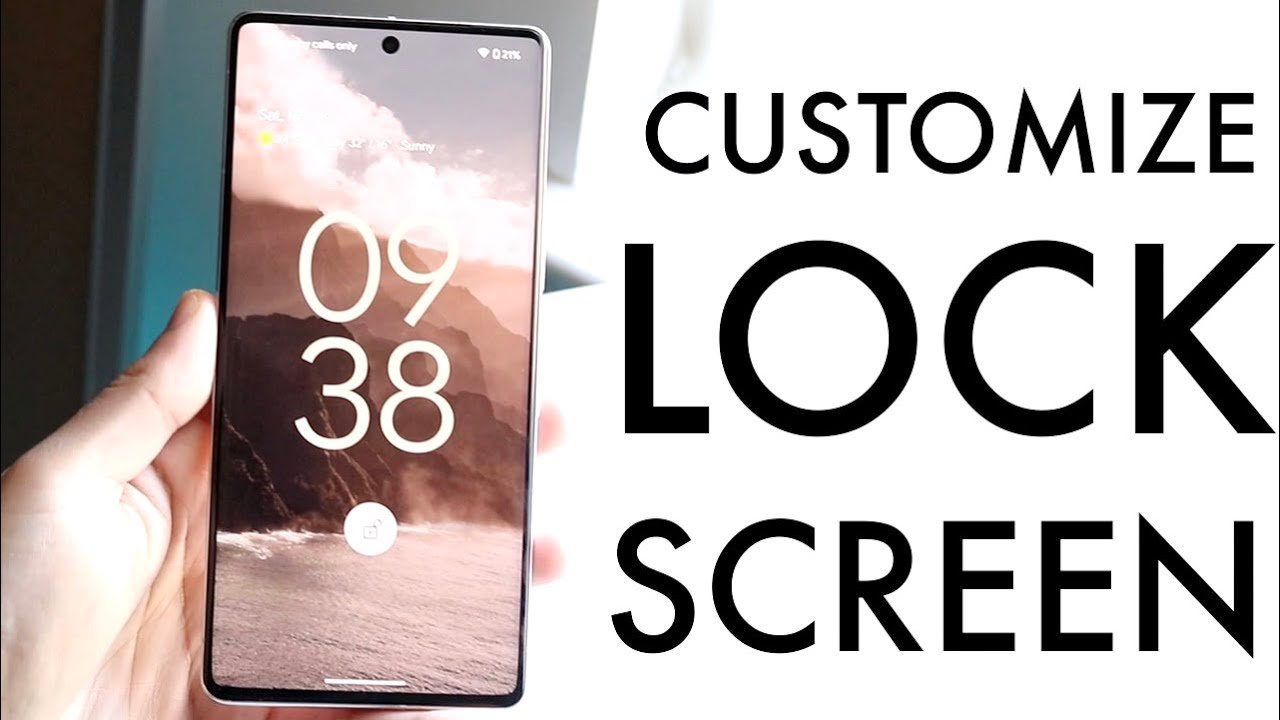

Your Android phone is more than just a device; it’s a personal statement. One of the most overlooked ways to express your style and enhance your phone’s functionality is through customizing the lock screen on Android. In this comprehensive guide, we’ll explore the latest methods, apps, and tips for creating a lock screen that is both visually appealing and highly functional in 2026.
Why Customizing Lock Screen on Android Matters
The lock screen is the first thing you see when you pick up your phone. A plain, default screen may work, but a personalized lock screen can:
- Reflect your style – Set wallpapers, colors, and themes that match your personality.
- Improve productivity – Add widgets like weather, calendar, or quick access to apps.
- Enhance security – Choose lock types that keep your data safe.
- Boost convenience – Quickly glance at notifications, messages, or even control music.
By customizing the lock screen on Android, you can transform your phone into a device that is not only secure but also uniquely yours.
Step 1: Update Your Android OS
Before diving into customization, ensure your Android device is running the latest version. Android updates often include new lock screen features like widgets, animations, and interactive notifications. Go to Settings > System > System Updates to check for the latest version.
Step 2: Choose the Right Lock Type
Security is crucial. Android offers multiple lock types:
- PIN or Password – Classic and secure.
- Pattern – Visual and fast to unlock.
- Biometric Locks – Fingerprint or face recognition for instant access.
Some devices in 2026 even support dynamic biometric authentication, combining multiple methods for added security. When customizing the lock screen on Android, always choose a lock type that balances safety with convenience.
Step 3: Set a Personalized Wallpaper
Your wallpaper sets the tone for your lock screen. Options include:
- Static images – Choose from your gallery or high-resolution images from wallpaper apps.
- Live wallpapers – Animated backgrounds for a dynamic look.
- Video wallpapers – 2026 phones now support looping short videos for lock screens.
To change your wallpaper, go to Settings > Wallpaper > Lock Screen, and select your preferred style. Using live or video wallpapers can make customizing lock screen on Android feel more futuristic and interactive.
Step 4: Add Widgets for Quick Access
Widgets make your lock screen functional. Some of the most popular widgets include:
- Clock and Date – Modern designs with customization options.
- Weather Updates – Real-time weather without unlocking your phone.
- Notifications – Emails, messages, or social media alerts at a glance.
- Music Controls – Play, pause, and skip tracks directly from the lock screen.
Android 14 and newer versions allow interactive widgets, letting you respond to messages or control apps without unlocking. This is one of the smartest ways of customizing the lock screen on Android for efficiency.
Step 5: Use Third-Party Apps for Advanced Customization
While stock Android offers basic customization, third-party apps give you endless possibilities. Some top apps in 2026 include:
- LockScreen Pro – Custom themes, widgets, and gestures.
- KLCK Kustom Lock Screen Maker – Fully customizable layouts for advanced users.
- Always On AMOLED – Dynamic lock screens that save battery while showing essential info.
- Zedge – High-quality wallpapers, themes, and live content.
These apps allow you to customize the lock screen on Android in ways that stock settings can’t, making your phone truly unique.
Step 6: Enable Smart Lock Features
Android’s Smart Lock makes your phone more convenient without sacrificing security. Options include:
- Trusted Devices – Keep your phone unlocked when connected to a smartwatch or car Bluetooth.
- Trusted Places – Automatically unlock when you’re at home or work.
- On-body Detection – Keeps the phone unlocked while in motion.
Integrating Smart Lock with a personalized lock screen creates a seamless experience for daily use.
Step 7: Experiment with Themes and Fonts
Changing themes and fonts is a subtle but powerful way to customize the lock screen on Android:
- Fonts – Modern fonts can make the clock and notifications look stylish.
- Themes – Dark, neon, minimal, or retro themes to match your wallpaper.
- Icon Packs – Customize notification icons for a coherent aesthetic.
Many Android launchers like Nova Launcher and Microsoft Launcher allow full theme and font control for the lock screen.
Step 8: Security Tips While Customizing Lock Screen
Customization shouldn’t compromise security. Keep these tips in mind:
- Avoid easily guessable patterns or passwords.
- Enable encryption on your device.
- Don’t use sensitive widgets that display private info publicly.
- Regularly update your apps and Android OS to patch vulnerabilities.
By following these tips, you can safely customize the lock screen on Android without risking your personal data.
Step 9: Add Shortcuts for Productivity
Maximize convenience with lock screen shortcuts:
- Quick access to the camera.
- One-tap call or message for favorite contacts.
- Calendar or reminders for important events.
- Health or fitness stats from wearables.
These shortcuts ensure your lock screen is both beautiful and functional, aligning with the 2026 trend of smart productivity on Android devices.
Step 10: Keep Exploring New Features
Android is constantly evolving, and new lock screen features are regularly introduced. Some emerging trends in 2026 include:
- AI-Powered Wallpapers – Dynamic backgrounds that change based on your mood or environment.
- Interactive Notifications – Respond to messages or manage tasks without unlocking.
- AR Lock Screens – Augmented reality elements integrated with daily utilities.
By staying updated, you can continuously enhance your experience of customizing the lock screen on Android.
Conclusion
Customizing your lock screen is more than just aesthetics—it’s about creating a seamless, functional, and secure experience on your Android device. From choosing the right lock type to exploring third-party apps and advanced widgets, 2026 offers endless possibilities to make your phone truly yours.
Start today: personalize wallpapers, set interactive widgets, and explore smart lock options. By mastering these steps, you can enjoy a lock screen that is not only visually stunning but also enhances productivity and security.
Remember: The key to effective customizing the lock screen on Android is balance—style, functionality, and security all working together.