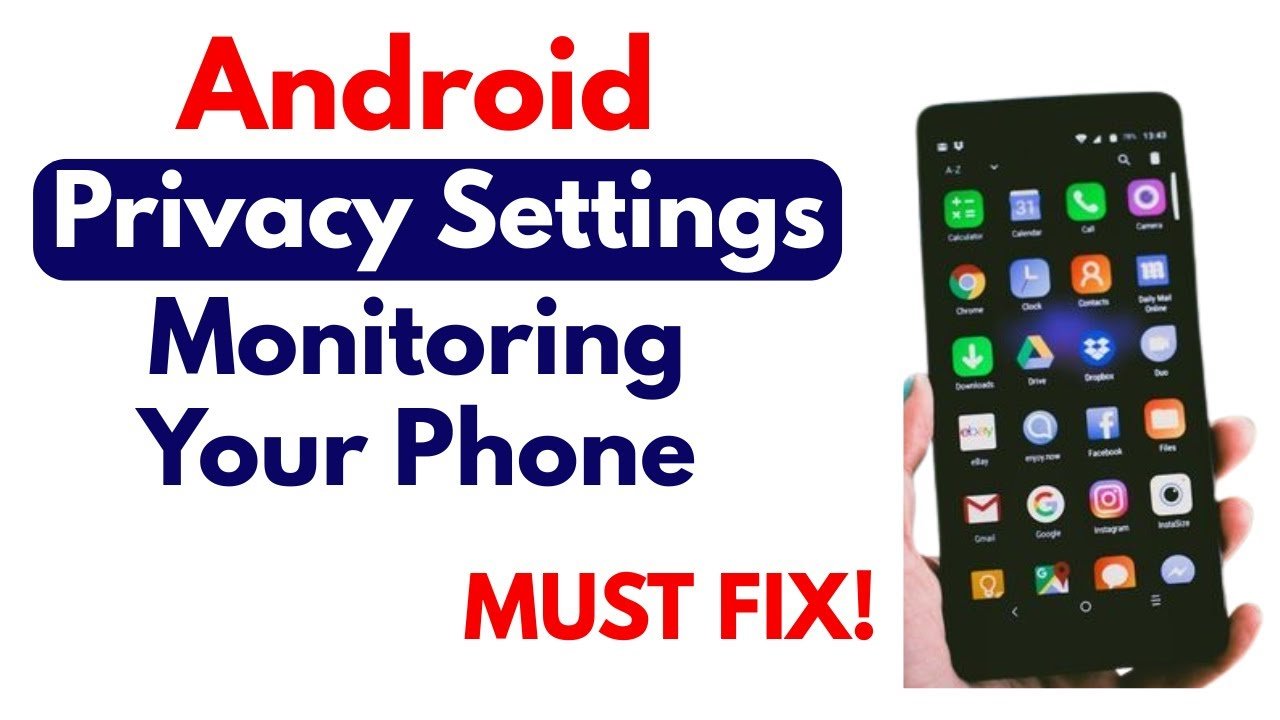

In today’s digital age, privacy has become one of the biggest concerns for smartphone users. Android devices, being widely used globally, hold a massive amount of personal information—from contacts and emails to location and app usage data. Protecting this data is crucial, and understanding the best privacy settings for Android users can save you from potential risks such as data breaches, identity theft, and unwanted tracking.
Whether you’re a casual smartphone user or someone who relies on Android for work, this guide will walk you through the essential steps to secure your device effectively.
Why Privacy Matters for Android Users
Android smartphones are powerful tools that store everything from personal photos to banking information. But with convenience comes responsibility. Hackers, malicious apps, and even advertisers can exploit your data if you don’t take proper precautions.
By implementing the best privacy settings for Android users, you can:
- Control which apps access your sensitive data
- Reduce personalized ad tracking
- Prevent unauthorized access to your location
- Secure communications and messages
- Enhance overall device security
Understanding these settings helps you stay in control, ensuring your data stays private while still enjoying the features of your device.
1. Manage App Permissions
One of the first steps in maintaining privacy on Android is managing app permissions. Many apps request access to your camera, microphone, contacts, or location, often unnecessarily. By reviewing and adjusting permissions, you can limit what apps can access.
Steps to manage permissions:
- Open Settings on your Android device.
- Navigate to Privacy → Permission Manager.
- Review permissions by category, such as Camera, Location, or Microphone.
- Revoke access for apps that don’t need it.
Regularly reviewing app permissions is crucial for the best privacy settings for Android users, as it minimizes exposure to potential privacy risks.
2. Use Strong Screen Lock Methods
Your device is your first line of defense. A strong screen lock prevents unauthorized access in case your phone is lost or stolen. Android offers several options:
- PIN or Password: A traditional and strong choice.
- Pattern Lock: Convenient, but avoid simple patterns like straight lines.
- Biometric Locks: Fingerprint or face recognition offers convenience with security.
For maximum security, combine a biometric lock with a strong password or PIN. This combination is one of the key steps in the best privacy settings for Android users.
3. Enable Two-Factor Authentication (2FA)
Two-factor authentication adds an extra layer of security to your accounts. Even if someone knows your password, they can’t access your accounts without the second factor, usually a code sent to your device.
To set up 2FA on Android:
- Open Settings → Google → Manage your Google Account.
- Navigate to Security → 2-Step Verification.
- Follow the prompts to enable it on your account.
This simple step ensures your Gmail, Google Drive, and other linked accounts are much safer—making it a must for the best privacy settings for Android users.
4. Limit Ad Personalization
Google tracks user behavior to deliver personalized ads. While this can be convenient, it also raises privacy concerns. Limiting ad tracking can reduce the amount of personal data collected.
Steps to limit ad personalization:
- Open Settings → Google → Ads.
- Toggle Opt out of Ads Personalization.
- Reset your advertising ID periodically for added privacy.
This small action is an essential part of protecting your privacy while using Android devices.
5. Control Location Sharing
Location data can reveal your movements and daily routines. Many apps request location access unnecessarily, which can compromise your privacy. Adjusting location settings ensures that only trusted apps can track you.
- Go to Settings → Location.
- Enable location only when using the app, not always.
- Turn off Location History to prevent Google from saving your movements.
Implementing these measures is one of the most effective ways to follow the best privacy settings for Android users.
6. Encrypt Your Device
Encryption converts your data into a secure code that can only be accessed with your password or PIN. Most modern Android devices are encrypted by default, but it’s worth checking.
Steps to ensure encryption:
- Open Settings → Security → Encryption & credentials.
- Check if your device is encrypted.
- If not, follow the instructions to encrypt it.
Encrypted devices are significantly safer, especially if your phone is lost or stolen.
7. Regularly Update Android OS
Software updates often include security patches that protect your device from new threats. Running outdated software increases your vulnerability to malware and cyberattacks.
- Go to Settings → System → Software Update.
- Enable automatic updates for continuous protection.
Keeping your system up-to-date is critical for any Android user seeking the best privacy settings for Android users.
8. Use Secure Messaging Apps
Private conversations require private apps. Consider using messaging platforms that offer end-to-end encryption to keep your messages secure from prying eyes.
Some top choices:
- Signal – Highly secure with open-source encryption.
- WhatsApp – Offers end-to-end encryption for chats and calls.
- Telegram – Provides secret chats with encryption.
These apps ensure that even if your device is compromised, your messages remain private.
9. Avoid Public Wi-Fi or Use a VPN
Public Wi-Fi networks are convenient but often unsecured. Hackers can intercept your data over public networks. Using a VPN (Virtual Private Network) encrypts your internet connection, providing privacy and security.
- Choose a reputable VPN provider.
- Enable VPN when using public Wi-Fi.
- Avoid transmitting sensitive information without a VPN.
This is a vital step for Android users who want the best privacy settings for Android users in today’s interconnected world.
10. Review Google Account Privacy Settings
Google accounts are linked to many Android services, and reviewing these settings is crucial for privacy. You can control data collection, app activity, and ad personalization from your account dashboard.
- Go to Settings → Google → Manage your Google Account → Data & Privacy.
- Review Activity Controls, including Web & App Activity and YouTube history.
- Adjust data-sharing preferences according to your comfort level.
Taking control of your Google account ensures you manage what data Google stores and shares.
Conclusion
Protecting your privacy on Android devices doesn’t have to be complicated. By implementing the best privacy settings for Android users, you gain control over your personal data, prevent unwanted tracking, and secure your digital life.
From managing app permissions and enabling two-factor authentication to using encrypted messaging and VPNs, each step strengthens your device’s security. Start today, and make your Android experience safer and more private in 2026.