
Smartphone users spend hours every day on their devices, whether browsing social media, reading articles, or watching videos. Bright screens can sometimes feel harsh on the eyes, especially at night. That’s why Dark Mode has become one of the most popular smartphone features in recent years. If you’re wondering how to enable Dark Mode on any Android, this complete guide will walk you through everything you need to know.
Dark Mode not only looks modern and stylish, but it also helps reduce eye strain and can even improve battery life on some devices. Whether you have a new Android phone or an older model, there are several ways to activate this feature.
In this article, we’ll explain how to enable Dark Mode on any Android device, step-by-step, along with tips, benefits, and troubleshooting solutions.
What is Dark Mode on Android?
Dark Mode is a display setting that changes your phone’s interface from a light background to a dark or black theme. Instead of bright white menus and apps, the screen becomes darker with lighter text.
Many users prefer Dark Mode because it provides a more comfortable viewing experience, especially in low-light environments. It also gives Android devices a sleek and modern look.
Learning how to enable Dark Mode on any Android device allows you to enjoy a better visual experience while using your phone.
Benefits of Using Dark Mode on Android
Before learning how to enable Dark Mode on any Android, it’s helpful to understand why so many users choose this feature.
1. Reduces Eye Strain
Bright screens can cause discomfort when used for long periods. Dark Mode reduces the brightness of backgrounds, making it easier on the eyes.
2. Saves Battery Life
Phones with OLED or AMOLED displays can save battery when Dark Mode is enabled because black pixels require less power.
3. Better Nighttime Usage
Using your phone at night becomes more comfortable since the screen produces less harsh light.
4. Modern and Stylish Interface
Many people simply enjoy the sleek and premium appearance of Dark Mode.
How to Enable Dark Mode on Any Android (Step-by-Step)
The process may vary slightly depending on your Android version and device manufacturer, but the steps are generally similar.
Method 1: Enable Dark Mode from Android Settings
This is the easiest way to activate Dark Mode on most Android devices.
Steps:
- Open Settings on your Android phone
- Tap Display
- Look for Dark Theme or Dark Mode
- Toggle the switch ON
Once enabled, the system interface, notifications, and many supported apps will automatically switch to Dark Mode.
This is the simplest method when learning how to enable Dark Mode on any Android device.
Method 2: Enable Dark Mode from Quick Settings
Many Android devices allow you to turn on Dark Mode quickly using the quick settings panel.
Steps:
- Swipe down from the top of the screen
- Open the Quick Settings Panel
- Look for Dark Mode or Dark Theme
- Tap the icon to activate it
This method is faster and convenient for users who want to switch themes quickly.
Method 3: Enable Dark Mode Automatically (Scheduled)
Android also allows you to schedule Dark Mode so it turns on automatically at night.
Steps:
- Go to Settings
- Tap Display
- Select Dark Mode
- Choose Schedule
- Set it to Sunset to Sunrise or create a custom schedule
This option is perfect if you only want Dark Mode during nighttime.
How to Enable Dark Mode on Older Android Versions
Some older Android phones don’t include a built-in Dark Mode option. However, you can still activate it using alternative methods.
Use a Dark Mode App
There are several apps available that help enable dark themes on older Android versions.
Steps:
- Open Google Play Store
- Search for Dark Mode App
- Install a trusted application
- Follow the instructions to enable the dark theme
These apps use system settings or accessibility features to apply Dark Mode.
Use Developer Options
Another method for enabling dark themes is through Developer Options.
Steps:
- Go to Settings
- Tap About Phone
- Tap Build Number seven times to enable Developer Options
- Return to Settings
- Open Developer Options
- Enable Override Force Dark
This setting forces many apps to use Dark Mode even if they don’t officially support it.
Enable Dark Mode in Popular Android Apps
Even if your phone doesn’t support system-wide Dark Mode, many apps allow you to enable it individually.
Here are some examples.
Google Chrome
- Open Chrome
- Tap the three-dot menu
- Go to Settings
- Tap Theme
- Select Dark
YouTube
- Open the YouTube app
- Tap your profile icon
- Go to Settings
- Select General
- Turn on Dark Theme
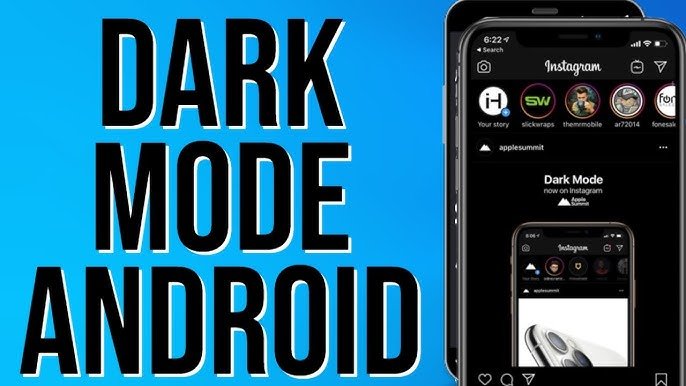
Instagram automatically follows your phone’s system theme. If your phone uses Dark Mode, Instagram will switch automatically.
Why Dark Mode May Not Work on Your Android
Sometimes users try how to enable Dark Mode on any Android but the option doesn’t appear. Here are a few possible reasons.
1. Old Android Version
Dark Mode was officially introduced in Android 10. Devices running older versions may not support it fully.
2. Manufacturer Restrictions
Some phone manufacturers limit certain features on budget devices.
3. App Compatibility
Not all apps support Dark Mode yet, though most modern apps do.
Tips for Getting the Best Dark Mode Experience
If you want the best experience after learning how to enable Dark Mode on any Android, consider these tips.
Use AMOLED Wallpapers
Black wallpapers work best with AMOLED screens and save more battery.
Keep Apps Updated
Developers constantly improve Dark Mode compatibility through updates.
Adjust Brightness
Lower brightness combined with Dark Mode gives a more comfortable viewing experience.
Use Reading Mode at Night
Combining Dark Mode with blue light filters can further reduce eye strain.
Dark Mode vs Light Mode: Which is Better?
Both themes have advantages depending on how you use your phone.
Dark Mode is better for:
- Nighttime usage
- Battery saving on OLED screens
- Reducing eye strain
Light Mode is better for:
- Bright daylight environments
- Reading long documents
- Apps not optimized for dark themes
Many users prefer switching between the two depending on the time of day.
Future of Dark Mode on Android
As Android continues to evolve, Dark Mode is becoming more advanced. Modern versions of Android now support dynamic theming, better app compatibility, and smarter scheduling options.
In the future, Dark Mode may become the default theme for many users as developers continue to optimize their apps for darker interfaces.
Learning how to enable Dark Mode on any Android device ensures you stay ahead and enjoy a more comfortable smartphone experience.
Final Thoughts
Dark Mode is one of the most useful and popular features available on Android smartphones today. It improves visual comfort, saves battery on certain displays, and gives your phone a modern appearance.
Now that you know how to enable Dark Mode on any Android, you can easily switch your device to a darker, more comfortable theme. Whether you enable it through system settings, quick settings, apps, or developer options, Dark Mode is accessible to almost every Android user.
If you spend a lot of time on your phone, enabling Dark Mode can significantly improve your overall experience.
So go ahead and try it today—your eyes might thank you for it!