
Android is known for its flexibility and customization features. Unlike many other mobile operating systems, Android allows users to personalize almost every aspect of their device — including the look of app icons. If you are tired of the default icons on your phone, you might be wondering how to change Android icons without root.
The good news is that you don’t need to root your device to customize your icons. There are several safe and simple methods that allow you to modify icons in just a few minutes. In this guide, we will explain how to change Android icons without root, the tools you need, and the best methods that work on most Android phones in 2026.
Why Customize Android Icons?
Before learning how to change Android icons without root, it’s helpful to understand why many Android users customize their icons.
Here are some common reasons:
- Make the phone look unique and stylish
- Match icons with wallpapers or themes
- Improve visibility of important apps
- Create a minimal or aesthetic home screen
- Organize apps visually
Customization has become very popular, especially with modern Android launcher apps that make icon editing easy and safe.
Is Root Required to Change Android Icons?
Many people believe that rooting is required for deep customization. While rooting allows advanced modifications, it is not necessary for changing icons.
In fact, learning how to change Android icons without root is the safest option because:
- Your phone warranty stays valid
- No risk of system damage
- Easy to install and remove customizations
- Works on almost all Android devices
With the help of launchers, icon packs, and shortcuts, anyone can customize icons without technical knowledge.
Method 1: Use a Custom Launcher
The easiest way to learn how to change Android icons without root is by using a custom launcher.
A launcher replaces your phone’s default home screen and allows deeper customization options.
Popular Launchers for Icon Customization
Some of the most trusted Android launchers include:
- Nova Launcher
- Lawnchair Launcher
- Smart Launcher
- Microsoft Launcher
- Niagara Launcher
These launchers allow you to apply icon packs or change individual app icons.
Steps to Change Icons Using a Launcher
- Download a launcher from the Play Store
- Install and set it as the default launcher
- Open launcher settings
- Look for the Icon Style or Appearance option
- Apply an icon pack or customize individual icons
Once done, your home screen icons will instantly change.
This is one of the simplest methods for how to change Android icons without root.
Method 2: Use Icon Pack Apps
Another effective way to learn how to change Android icons without root is by using icon packs.
Icon packs contain hundreds or thousands of redesigned icons that replace your default app icons.
Best Icon Packs for Android
Some popular icon packs include:
- Delta Icon Pack
- CandyCons
- Pixel Icon Pack
- Whicons Icon Pack
- Viral Icon Pack
Most icon packs are compatible with popular launchers like Nova Launcher.
How to Apply an Icon Pack
Follow these simple steps:
- Install an icon pack from the Play Store
- Install a compatible launcher
- Open launcher settings
- Select Icon Pack
- Choose your installed pack
Your icons will instantly update across the home screen.
This method is widely used by users searching for how to change Android icons without root.
Method 3: Change Individual Icons
Sometimes users don’t want to change all icons — only specific apps.
Fortunately, many launchers allow you to edit individual icons.
Steps to Change a Single App Icon
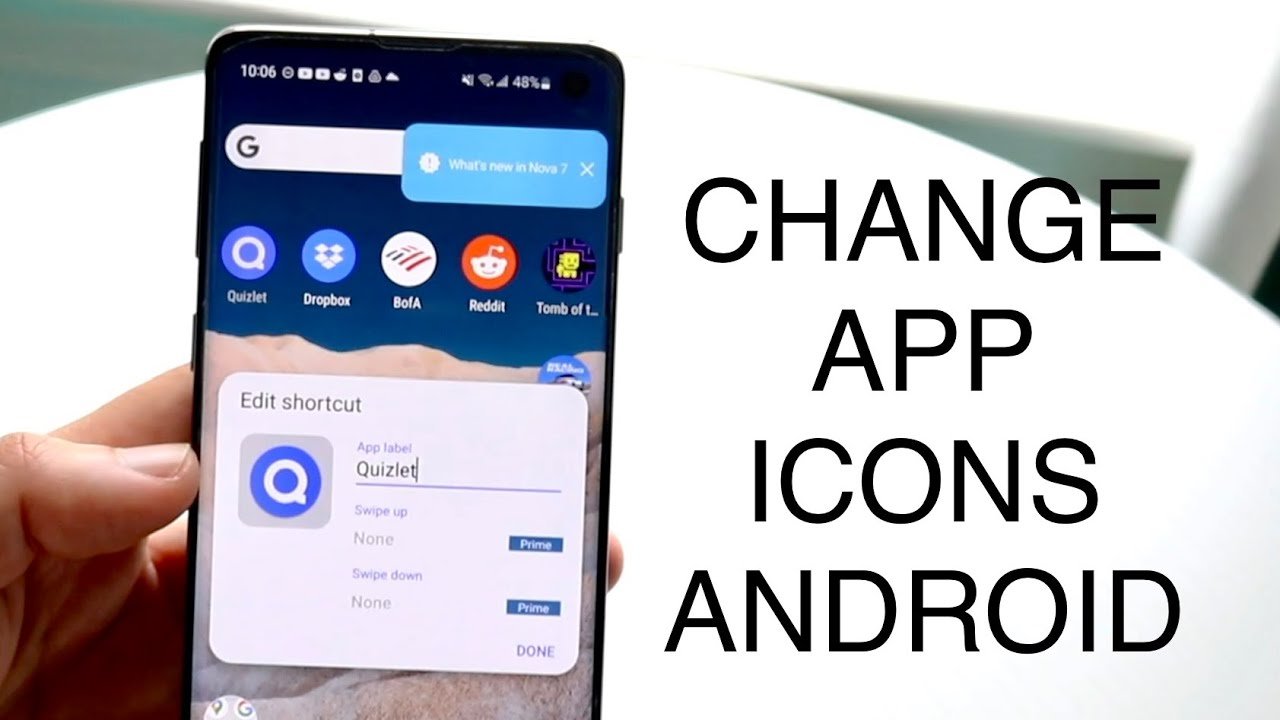
- Long-press the app icon on the home screen
- Tap Edit or Customize
- Tap the icon image
- Choose an icon from the icon pack or gallery
- Save changes
This allows you to create a fully personalized home screen design.
For example, you could use minimalist icons for social apps and colorful icons for games.
Method 4: Use Shortcut Maker Apps
Another smart trick for how to change Android icons without root is using shortcut apps.
These apps create custom shortcuts with personalized icons.
Popular Shortcut Apps
- Shortcut Maker
- X Icon Changer
- Awesome Icons
How Shortcut Apps Work
These apps create a shortcut with a custom icon instead of changing the original app icon.
Steps usually include:
- Install a shortcut customization app
- Select the app you want to customize
- Choose a new icon from the gallery or icon pack
- Add the shortcut to your home screen
While the original app remains unchanged, the shortcut looks exactly like a new icon.
Method 5: Use Custom Widgets and Themes
Modern Android customization often combines icons with widgets and themes.
Apps like:
- KWGT
- Widget customization tools
- Theme apps
allow you to design a complete home screen setup.
If you are exploring how to change Android icons without root, combining icons with widgets can give your phone a completely new appearance.
Tips for Better Android Icon Customization
To get the best results while learning how to change Android icons without root, keep these tips in mind:
1. Use High-Quality Icon Packs
Low-quality icon packs may look blurry or inconsistent.
Choose packs with:
- High resolution icons
- Regular updates
- Large icon libraries
2. Match Icons with Wallpaper
Your wallpaper plays a major role in how icons look.
Minimal wallpapers often work best with custom icon packs.
3. Keep Icons Consistent
Avoid mixing too many icon styles. Consistency makes the home screen look clean and professional.
4. Organize Apps with Folders
Folders help reduce clutter and improve the overall design of your home screen.
Common Problems When Changing Icons
While learning how to change Android icons without root, some users experience small issues.
Here are common problems and solutions:
Icons Reverting to Default
This usually happens when the launcher resets.
Solution: Set your custom launcher as default again.
Not All Icons Change
Some apps do not have matching icons in the pack.
Solution: Manually change those icons using the launcher edit option.
Shortcut Apps Showing Watermarks
Some free apps show small watermarks.
Solution: Use ad-free icon changer apps or upgrade to premium.
Is Changing Icons Safe?
Yes. Customizing icons without root is completely safe.
You are only modifying the appearance of the home screen — not the system files.
That’s why many users prefer methods that teach how to change Android icons without root instead of rooting their devices.
Final Thoughts
Personalizing your smartphone is one of the best parts of using Android. Thankfully, learning how to change Android icons without root is simple and accessible for everyone.
By using launchers, icon packs, or shortcut apps, you can completely transform the look of your home screen without risking your device or voiding your warranty.
Whether you prefer minimalist icons, colorful themes, or custom designs, Android provides endless possibilities for customization.
If you enjoy experimenting with phone design, changing icons is one of the easiest and most satisfying ways to make your device truly yours.