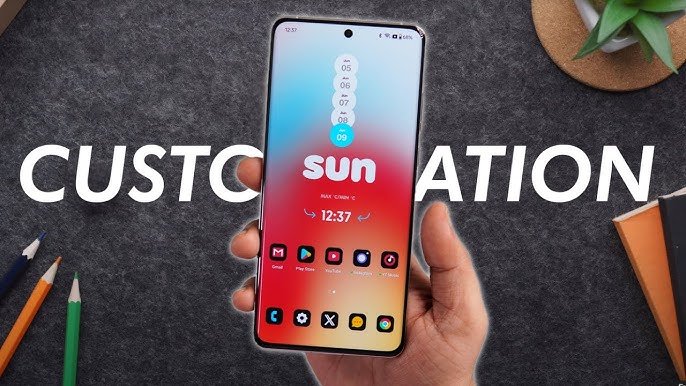

Android devices are incredibly versatile, offering countless ways to personalize your smartphone experience. Yet, many users stick to default settings, missing out on features that can make their device faster, smarter, and more efficient. In this guide, we’ll show you how to customize Android settings like a pro—so you can unlock the full potential of your device in 2026.
Whether you are a beginner or a seasoned Android user, these tips and tricks will help you optimize your phone, boost performance, and personalize it to match your style and workflow.
Why Customizing Android Settings Matters
Customizing your Android settings goes beyond changing wallpapers or ringtones. By optimizing settings, you can:
- Improve battery life – tweak features that drain power.
- Enhance performance – speed up your device by managing background apps.
- Boost privacy and security – control permissions, location access, and more.
- Increase productivity – automate tasks and personalize notifications.
- Personalize your experience – make your phone truly yours.
In short, knowing how to customize Android settings like a pro gives you full control over your device, saving time and improving daily usage.
1. Master the Quick Settings Panel
The Quick Settings panel is your gateway to fast access controls. By customizing it, you can save time and access frequently used functions with a single swipe.
- Rearrange tiles: Long-press on tiles to move your most-used options like Wi-Fi, Bluetooth, or Dark Mode to the top.
- Add new tiles: Depending on your Android version, you can add shortcuts for battery saver, screen recorder, or NFC.
- Smart suggestions: Some Android devices provide suggestions for your Quick Settings based on usage patterns.
Tip: Learning how to customize Android settings like a pro starts with mastering this panel—every second saved counts.
2. Optimize Battery & Performance Settings
Battery life is one of the most critical aspects of smartphone usage. Android offers several tools to optimize power consumption.
- Adaptive Battery: Limits battery usage for apps you rarely use.
- Battery Saver Mode: Automatically restricts background activity when your battery is low.
- Background App Management: Go to Settings > Apps > Battery > Background restriction to prevent apps from draining power unnecessarily.
Advanced tip: Some users enable Developer Options and limit background processes for smoother performance. This is a powerful trick when learning how to customize Android settings like a pro.
3. Personalize Display & Visuals
Your device’s display is the most interactive part, and customizing it can significantly enhance your experience.
- Dark Mode & Adaptive Brightness: Save battery and reduce eye strain by enabling dark mode and adaptive brightness.
- Screen Timeout: Reduce unnecessary screen-on time in Settings > Display > Screen timeout.
- Font Size & Display Size: Adjust text and icon sizes to make your device more comfortable to use.
Remember, personalization is part of customizing Android settings like a pro, not just convenience.
4. Master Notification Settings
Notifications can be overwhelming, but Android allows you to fine-tune them for optimal productivity.
- App-specific notifications: Turn off unnecessary notifications in Settings > Apps > Notifications.
- Notification channels: Many apps offer categories; choose which notifications are important.
- Do Not Disturb & Focus Mode: Schedule quiet hours for work or sleep.
Pro tip: Using Focus Mode strategically is a hallmark of those who truly know how to customize Android settings like a pro.
5. Security & Privacy Settings You Should Know
Security and privacy are essential in today’s digital world. Android gives you robust control over your data.
- App Permissions: Review which apps access your camera, microphone, location, and contacts.
- Lock Screen Security: Use PIN, password, fingerprint, or facial recognition.
- Google Play Protect: Ensure your apps are safe from malware.
- Encrypted Storage & Backup: Enable device encryption and backup important files regularly.
Users who master these settings are well on their way to learning how to customize Android settings like a pro.
6. Explore Developer Options
Developer Options provide advanced controls for those who want to take their Android customization to the next level.
- USB Debugging: Required for connecting your device to computers for advanced functions.
- Animation Scale Adjustments: Speed up navigation by reducing or turning off window and transition animations.
- Background Process Limit: Control the number of apps running in the background for smoother performance.
Note: Always proceed with caution in Developer Options—small changes can significantly impact your device.
7. Automate Tasks for Efficiency
Android automation tools can make your phone smarter. Apps like Tasker or built-in Routines let you automate repetitive tasks:
- Auto-enable Wi-Fi when at home.
- Silent mode during meetings.
- Auto-launch favorite apps at specific times.
Mastering automation is an advanced step in customizing Android settings like a pro, saving both time and effort.
8. Customize Sounds & Haptics
Sound settings may seem trivial, but a few tweaks can make your device feel premium:
- Custom ringtones & notification sounds: Assign different tones to apps and contacts.
- Vibration intensity: Adjust to match your preference.
- Do Not Disturb exceptions: Allow important calls while silencing everything else.
Pro users treat their Android as a complete sensory experience, not just a screen.
9. Take Advantage of Accessibility Features
Android offers accessibility settings that can improve usability for all users:
- Magnification & font adjustments: Easy reading for long texts.
- Color inversion & high contrast: Better visibility for low-light conditions.
- Voice Access: Control your device using voice commands.
Leveraging these features is another advanced tip on how to customize Android settings like a pro.
10. Backup & Restore Settings
Finally, backing up your customized settings ensures you can restore your device quickly if needed.
- Google Backup: Settings, apps, and data can be restored automatically.
- Third-party backup apps: Offer additional flexibility and cloud options.
- Export & import Wi-Fi networks: Save time when switching devices.
Professionals never risk losing their personalized settings—this is a key step in mastering how to customize Android settings like a pro.
Bonus Tips for Pro-Level Customization
- Install Custom Launchers – Change the look and feel of your home screen completely.
- Use Widgets Wisely – Keep information at your fingertips without cluttering your screen.
- Experiment with Icon Packs – Small visual changes make your device feel unique.
- Regular Maintenance – Clear cache, update apps, and check permissions to keep your phone running smoothly.
- Stay Updated – Android updates often include new settings to explore and tweak.
Conclusion
Learning how to customize Android settings like a pro transforms your smartphone from a simple tool into a highly personalized, efficient, and secure device. By mastering battery management, notifications, security, automation, and visual settings, you can enjoy a faster, safer, and more enjoyable Android experience in 2026.
Start small, experiment with settings, and gradually implement advanced tweaks. The more you explore, the closer you get to true Android mastery.