
Have you ever tried downloading an app on your Android phone, only to see the frustrating message: “App Not Installed”? You’re not alone.
Many Android users face this issue daily. Whether you’re installing apps from the Google Play Store or downloading APK files manually, this error can appear without warning. The good news? It’s usually easy to fix.
In this complete guide, we’ll explain How to Fix App Not Installing Error using simple, practical steps. Follow this tutorial carefully, and your apps will install smoothly again.
Why Does the App Not Installing Error Happen?
Before fixing the problem, it’s important to understand why it happens. The App Not Installing Error can occur due to several reasons:
- Insufficient storage space
- Corrupted APK file
- Version conflict
- App signature mismatch
- Outdated Android system
- Google Play Store glitches
- SD card issues
- Cache and data errors
Let’s now go step-by-step and fix the problem properly.
1. Check Your Storage Space First
One of the most common reasons behind this issue is low storage space.
Even if your phone shows free space, Android needs extra room to unpack and install the app.
How to Check Storage:
- Go to Settings
- Tap Storage
- Check available space
Fix:
- Delete unused apps
- Remove large videos or photos
- Clear WhatsApp media
- Move files to SD card or cloud storage
💡 Pro Tip: Keep at least 1–2 GB free for smooth performance.
2. Restart Your Phone
Sometimes the solution is very simple.
A basic restart can clear temporary system glitches causing the installation error.
Steps:
- Hold the power button
- Tap Restart
- Try installing the app again
This quick method solves many minor installation problems.
3. Clear Google Play Store Cache and Data
If you’re installing apps from the Play Store, the issue may be coming from it.
Steps:
- Go to Settings
- Tap Apps
- Select Google Play Store
- Tap Storage
- Press Clear Cache
- Then tap Clear Data
Now reopen the Play Store and try again.
This is one of the most effective ways when learning How to Fix App Not Installing Error.
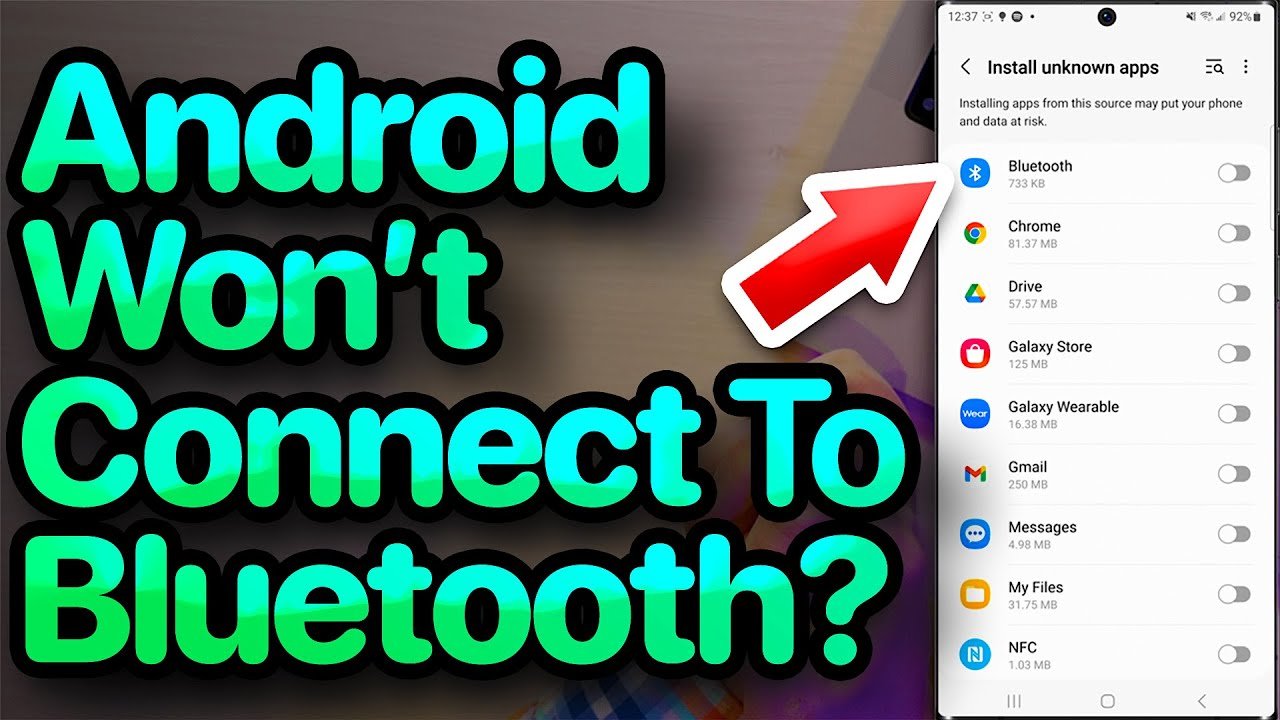
4. Enable Unknown Sources (For APK Files)
If you’re installing apps manually (APK files), your phone may block installations from unknown sources.
To Enable:
- Go to Settings
- Tap Security
- Enable Install Unknown Apps
- Allow permission for your browser or file manager
After enabling, try installing the APK again.
5. Remove Previous Version of the App
If the app is already installed but not fully removed, Android may show an installation error.
Fix:
- Go to Settings > Apps
- Search the app
- Tap Uninstall
- Restart phone
- Install again
Sometimes leftover files cause version conflicts.
6. Check APK File Compatibility
Not all APK files work on every device.
Common Compatibility Issues:
- App made for higher Android version
- 32-bit vs 64-bit mismatch
- Modified or corrupted APK
Solution:
- Download APK from trusted sources
- Make sure app supports your Android version
- Avoid heavily modified apps
Using the correct version is essential when understanding How to Fix App Not Installing Error properly.
7. Disable Play Protect Temporarily
Google Play Protect may block certain apps.
Steps:
- Open Google Play Store
- Tap your profile icon
- Go to Play Protect
- Tap settings icon
- Disable Scan apps with Play Protect
Now try installing again.
⚠️ Remember to enable it back after installation.
8. Remove SD Card (If Installed)
Sometimes apps cannot install because of SD card problems.
Fix:
- Remove SD card
- Restart phone
- Try installing app in internal storage
If this works, your SD card may be corrupted.
9. Reset App Preferences
If nothing works, try resetting app preferences.
Steps:
- Go to Settings
- Tap Apps
- Tap three dots (top corner)
- Select Reset App Preferences
- Confirm
This will not delete your data but will reset permissions and settings.
10. Update Your Android Version
Outdated Android systems often cause compatibility problems.
To Check:
- Go to Settings
- Tap Software Update
- Check for updates
Install updates if available.
Modern apps require updated Android systems to install properly.
11. Clear Package Installer Cache
Another effective method when fixing installation issues:
Steps:
- Go to Settings
- Tap Apps
- Find Package Installer
- Tap Storage
- Clear cache and data
Now try installing again.
12. Factory Reset (Last Option)
If nothing works, a factory reset may solve deep system errors.
⚠️ Warning: This will erase all data.
Steps:
- Backup your important files
- Go to Settings
- Tap System
- Select Reset
- Choose Factory Data Reset
Only use this option if other methods fail.
Bonus Tips to Avoid App Installation Errors in Future
Now that you understand How to Fix App Not Installing Error, here are some prevention tips:
✅ Keep at least 20% storage free
✅ Regularly clear cache
✅ Avoid downloading corrupted APKs
✅ Update apps regularly
✅ Keep Android updated
✅ Use trusted sources only
Common Error Messages & What They Mean
“App Not Installed”
Usually version conflict or storage issue.
“Parse Error”
APK file corrupted or incompatible.
“Insufficient Storage Available”
Not enough free internal space.
“Installation Blocked”
Unknown sources not enabled.
Understanding these messages makes troubleshooting much easier.
Frequently Asked Questions (FAQs)
Why does my phone say app not installed even though I have space?
It may be due to cache issues, corrupted APK, or version conflict.
Can antivirus apps block installation?
Yes, security apps sometimes block unknown APK files.
Why can’t I install apps from Play Store?
Try clearing Play Store cache or updating Google Play Services.
Is it safe to disable Play Protect?
Temporarily yes, but enable it again after installation.
Final Thoughts
Facing installation problems can be frustrating, especially when you urgently need an app. But now you know exactly How to Fix App Not Installing Error using safe and effective methods.
Most of the time, the problem is caused by:
- Low storage
- Cache glitches
- Version conflicts
- Permission issues
By following the step-by-step guide above, you can solve the issue within minutes.
If you found this guide helpful, keep visiting apkayz.com for more Android tips, app solutions, and easy tech tutorials.